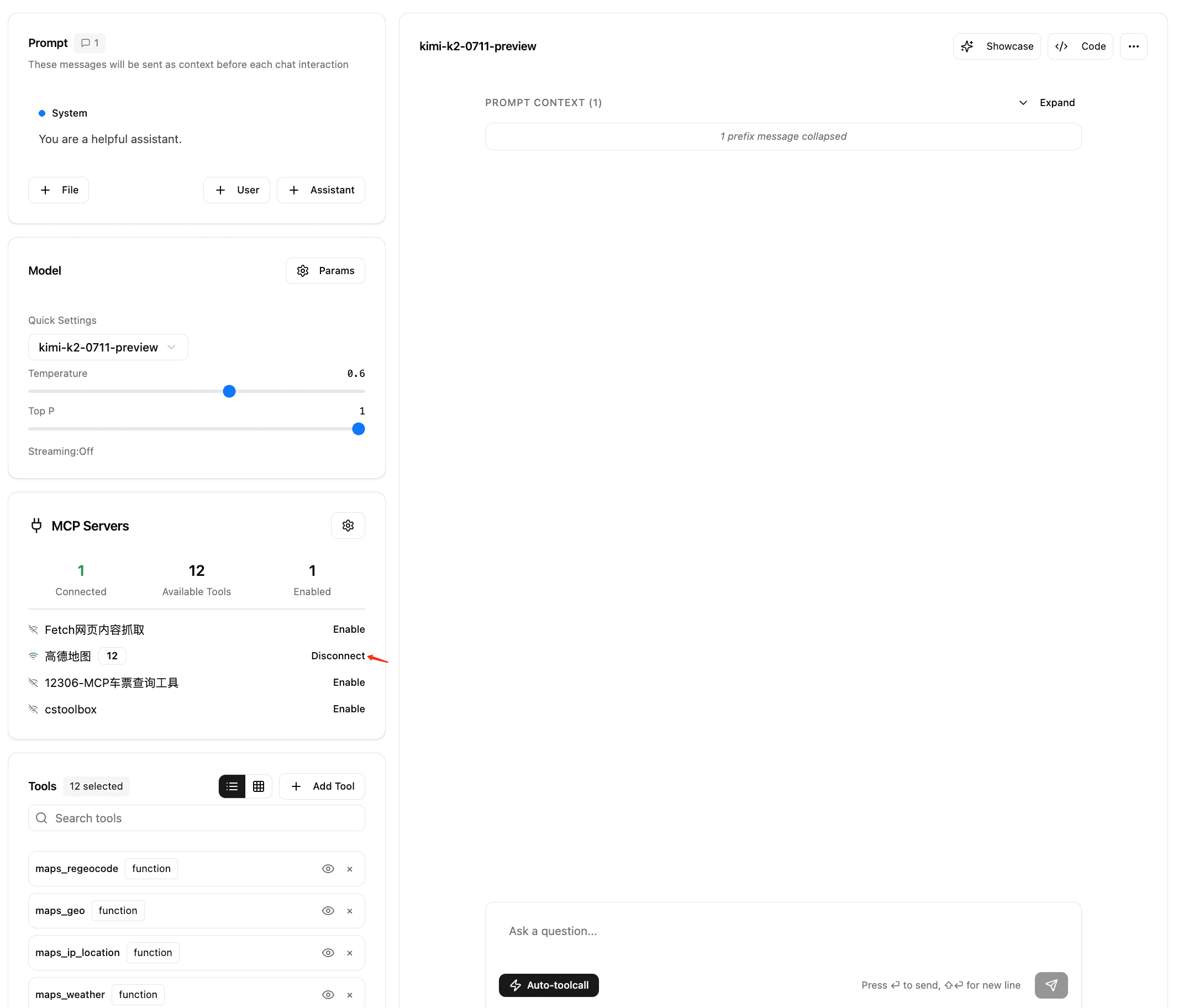
Configure ModelScope MCP Server in Playground
Kimi Open Platform has established an official partnership with ModelScope, simplifying the process of adding MCP servers to the Kimi Open Platform Playground. You can also discover numerous MCP servers in the ModelScope community. Let's see how to use ModelScope MCP services in Kimi Playground.
Configure ModelScope MCP Synchronization in Kimi Playground
First, log in to Kimi Playground: https://platform.moonshot.ai/playground (opens in a new tab) and ensure you can have basic conversations using the Kimi K2 model.
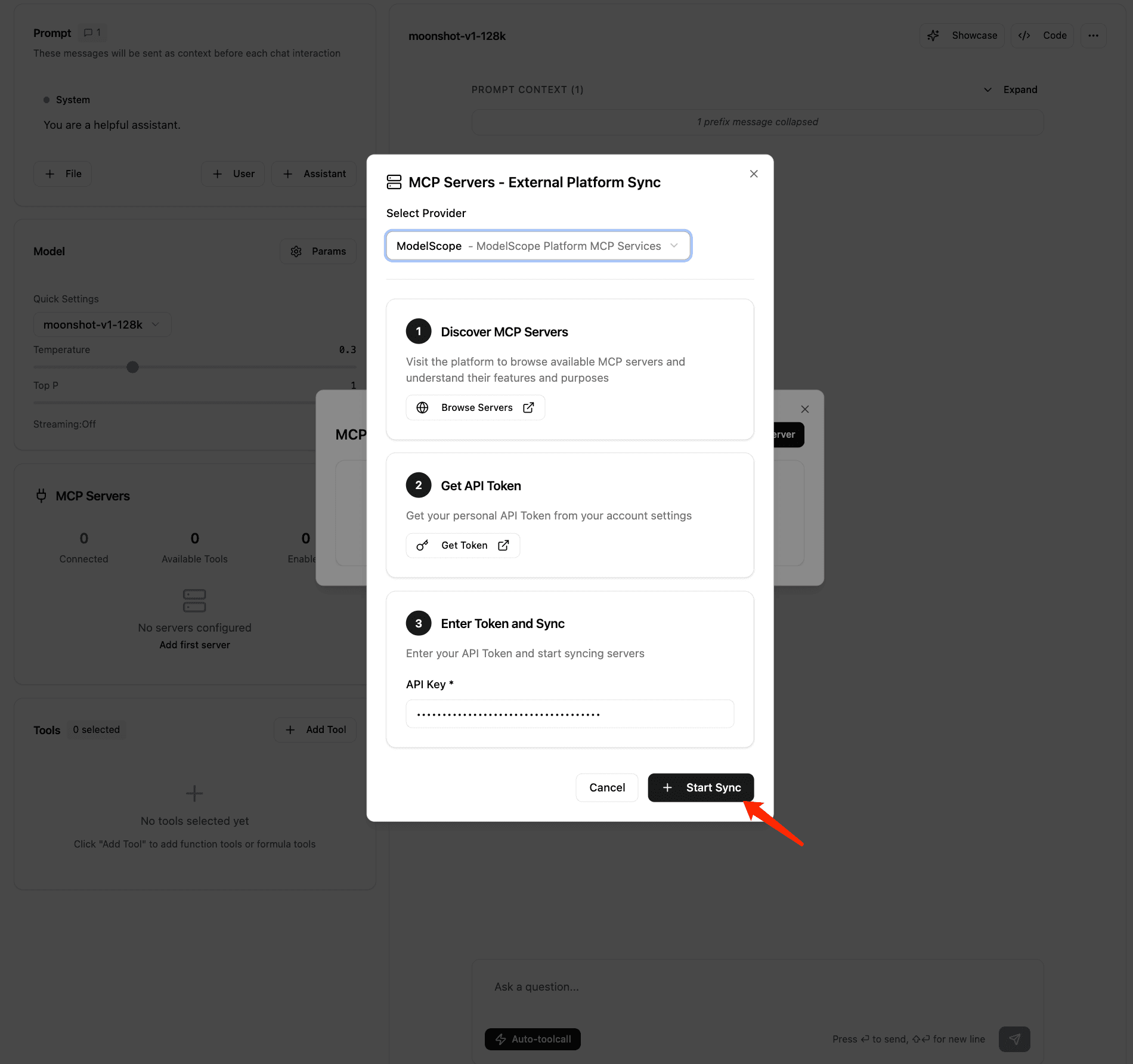
To enable MCP services in Kimi Playground, you need to add MCP service configurations in "MCP Server Settings". Once there, you'll see that Kimi Playground has ModelScope selected as the default MCP service provider. Through the partnership between Kimi Playground and ModelScope, you only need to enter your ModelScope API token to synchronize all configured hosted MCP service configurations under your ModelScope account. If you haven't used ModelScope MCP marketplace before, we recommend referring to the ModelScope official documentation (opens in a new tab) to select and host your MCP services.
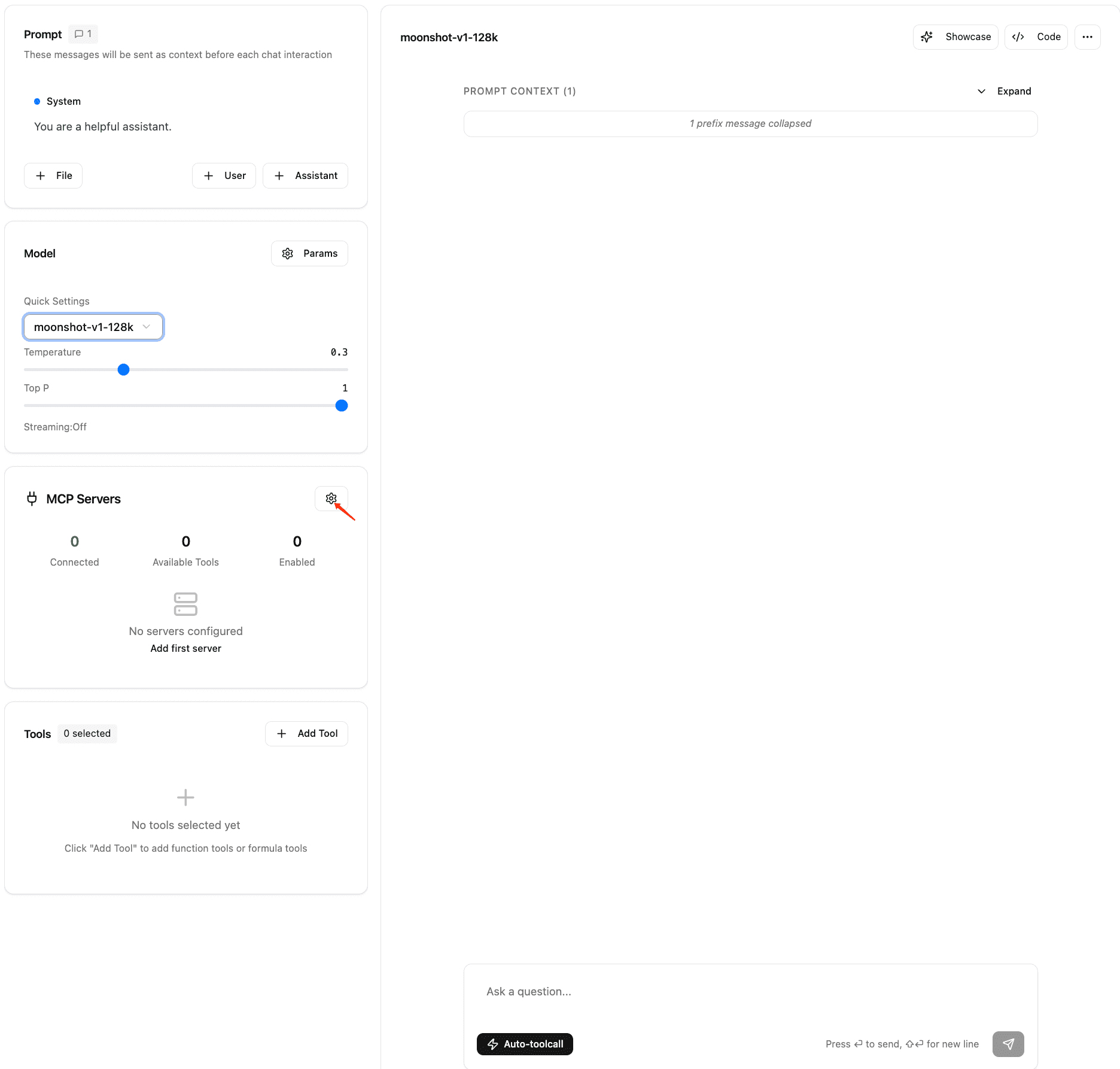
Step 1: Click the Configuration Button
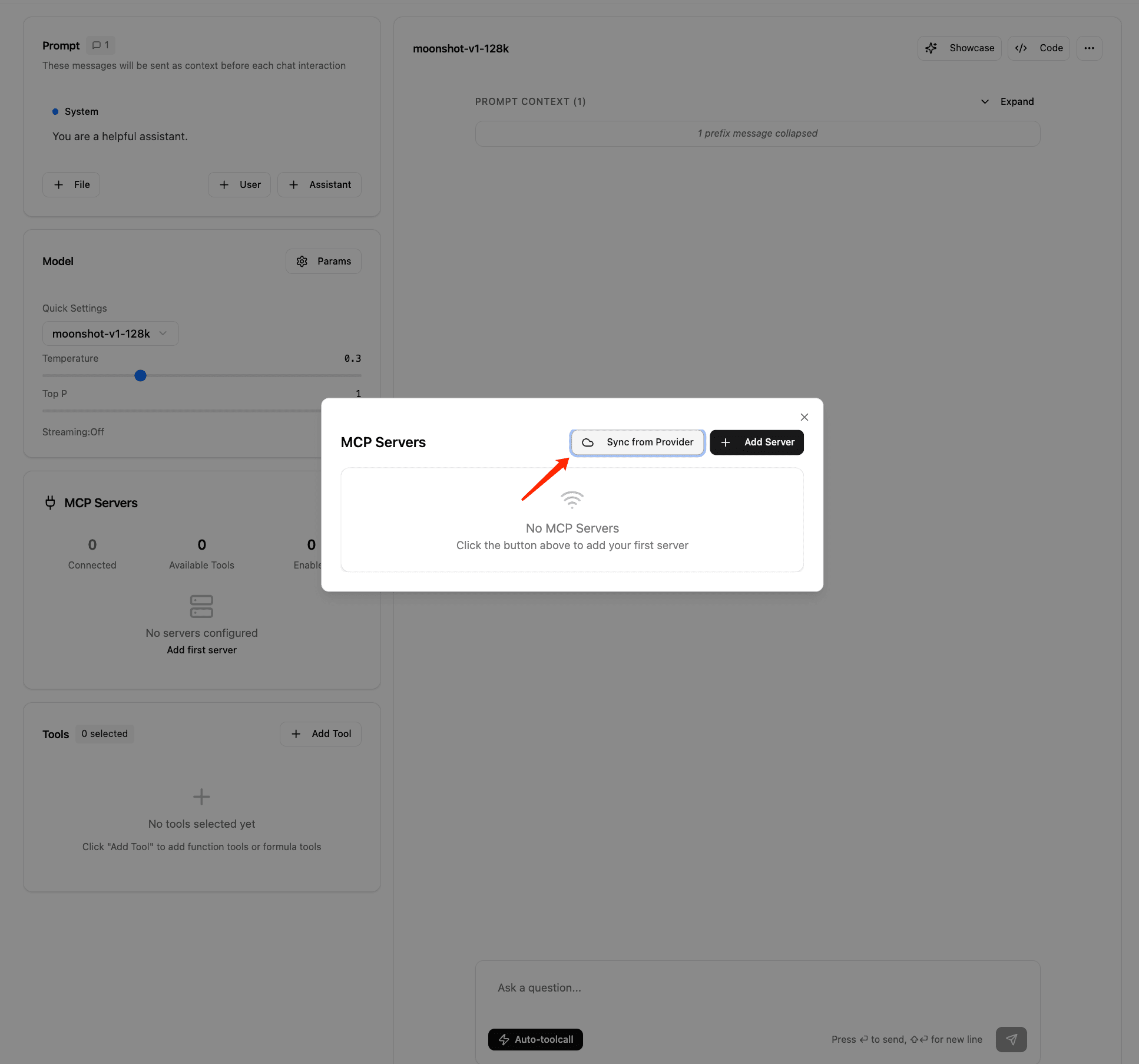
Step 2: Synchronize with External Platform
You can obtain the API token by visiting the ModelScope Homepage - Access Token (opens in a new tab) page
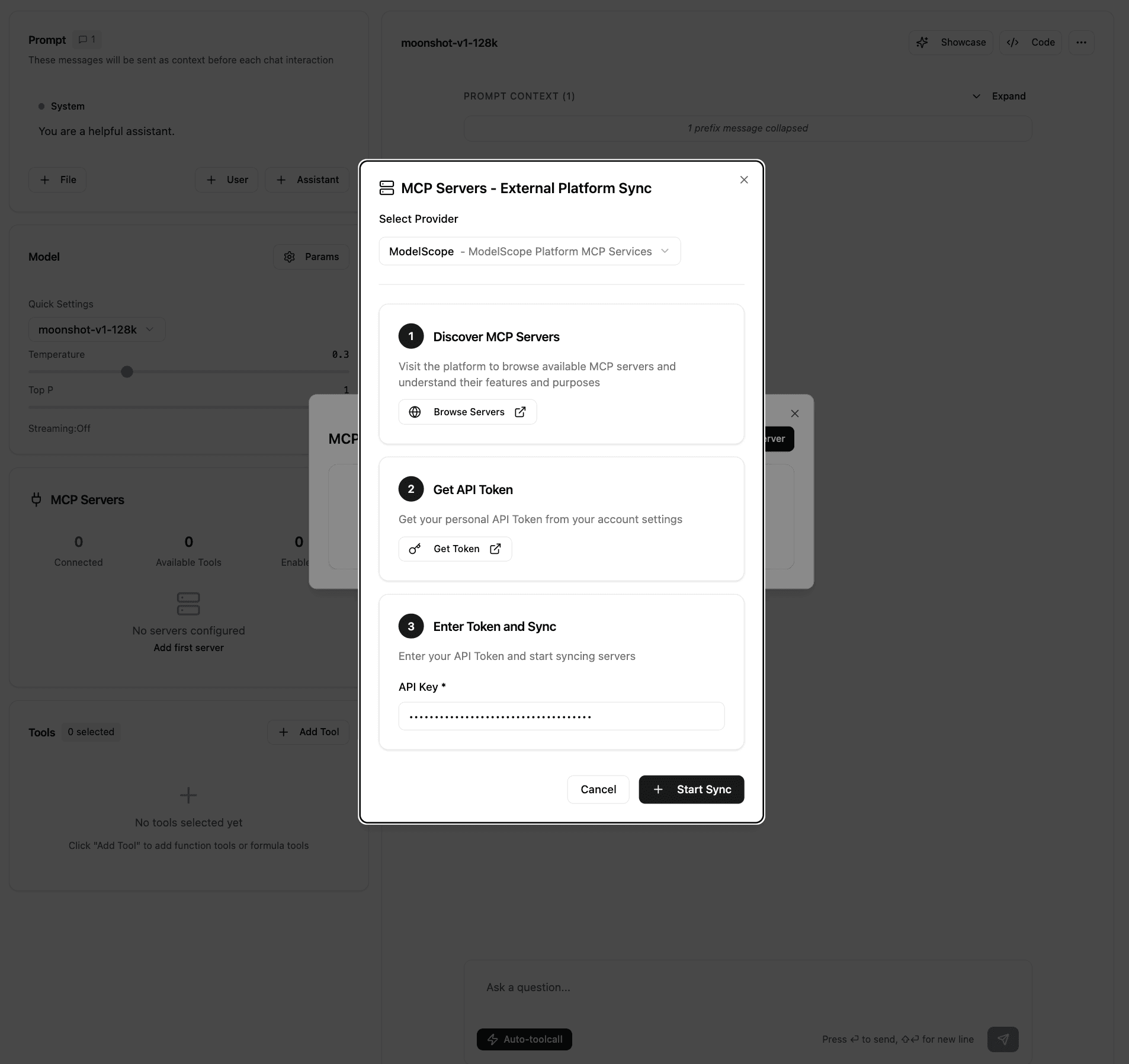
After obtaining the ModelScope API token, paste it into the field in Step 3 and click the "Start Sync" button.
You will see all configured connected ModelScope Hosted MCP services successfully synchronized to the available MCP services list in Kimi Playground.
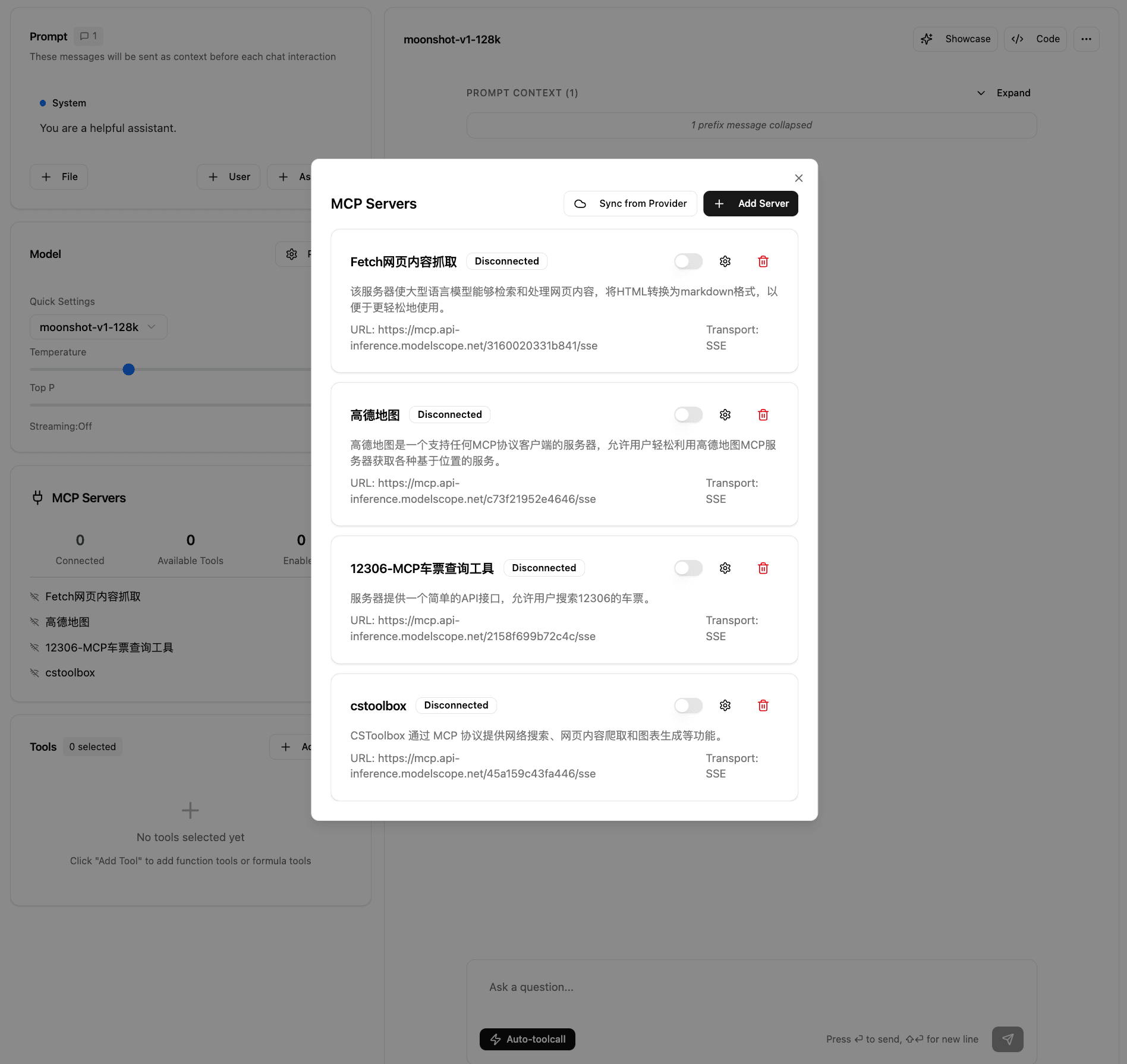
Then you can happily experience AI assistants using MCP services to complete tasks in Kimi Playground!
Incremental Updates
If you later add or remove hosted MCP services in the ModelScope MCP marketplace, you can perform incremental updates by clicking the sync button in "Settings - MCP Server - Sync Server".
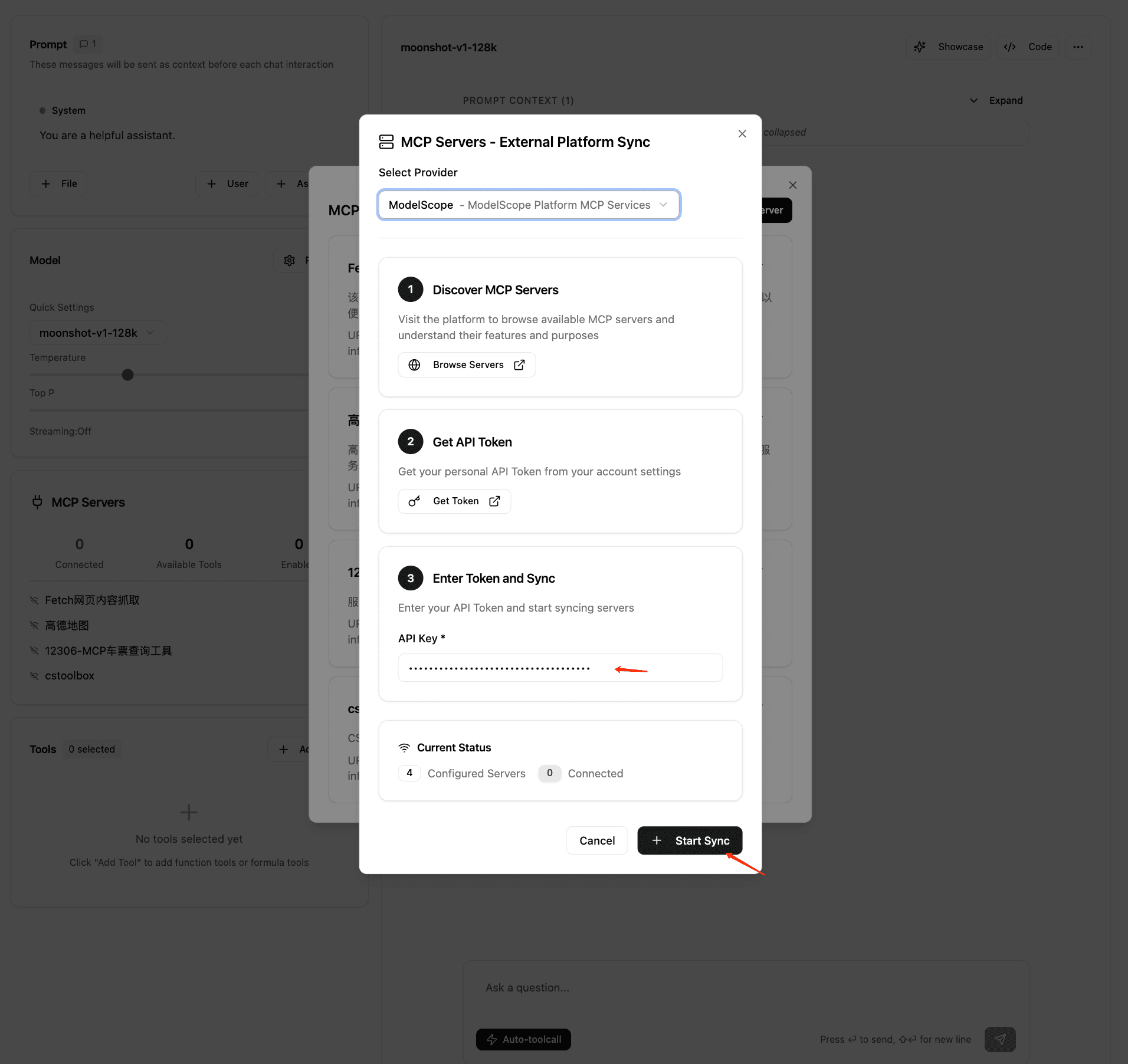
Using Models with MCP in Kimi Playground
After synchronizing MCP services, you will see a "MCP Services List" on the left side of the Kimi Playground platform page, which was imported from the previous synchronization operation. In this list, you can select multiple services and enable the MCP services you want to use in the current conversation.