How to Connect Kimi K2.5 to OpenClaw
OpenClaw (formerly Clawdbot and Moltbot) is an open-source, self-hosted AI agent platform that lets you run AI assistants locally. It integrates with messaging apps like WhatsApp, Telegram, Discord, Slack, and Signal to connect large language models to real-world workflows. The platform supports multiple LLM providers, extensible skills, and gives you full control over your data and API keys.
Here is how to use the Kimi K2.5 model in OpenClaw.
Step1: Create Kimi Platform API Key
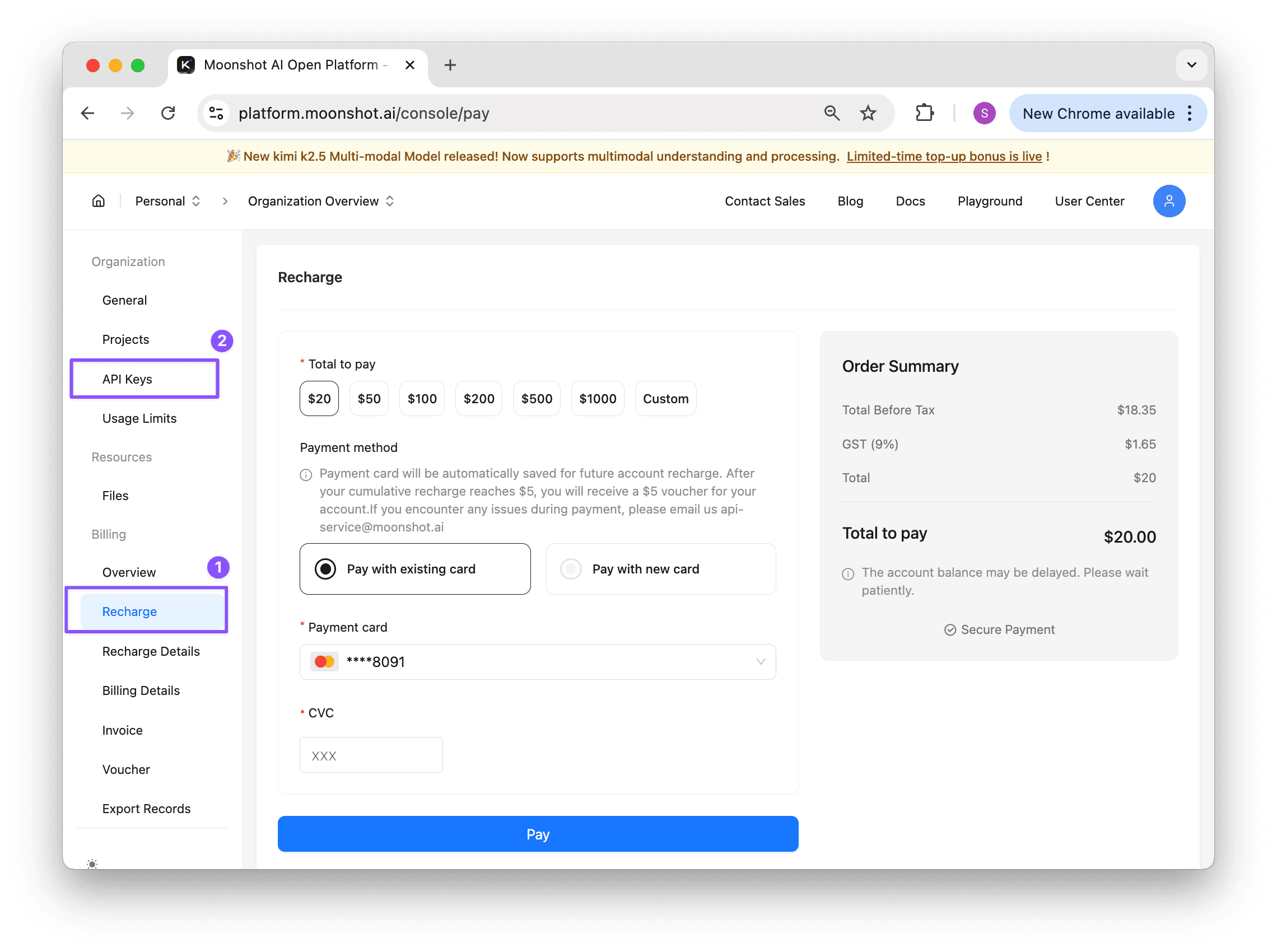
- Newly registered accounts have no balance and need to be topped up before use. It is recommended to recharge $20 or more to upgrade to tier2 to get a smoother usage experience Go to recharge (opens in a new tab)
- Create and copy the API key: Go to create (opens in a new tab)
Step2: Install OpenClaw
Run the following command in the terminal. If you have already installed OpenClaw, please also execute this command to upgrade OpenClaw.
Version: We strongly recommend upgrading to version 2026.2.3 or above. Starting from 2.3, OpenClaw supports selecting the Kimi K2.5 models for both Mainland China and International Open Platform.
curl -fsSL https://openclaw.ai/install.sh | bash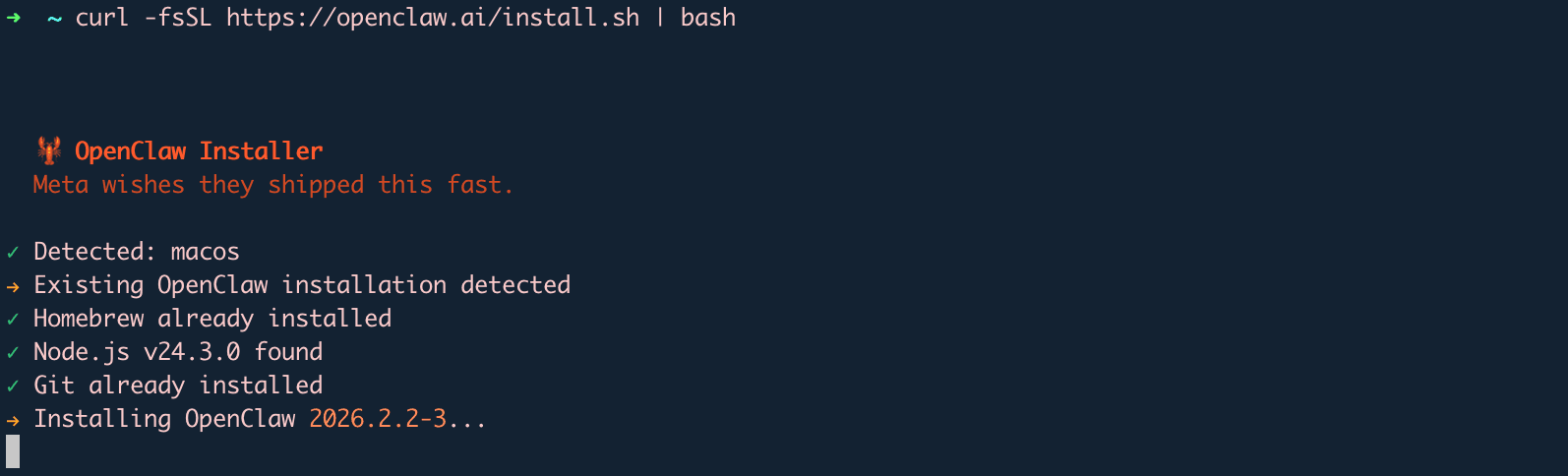
Visit the official OpenClaw website for more information: https://openclaw.ai/ (opens in a new tab)
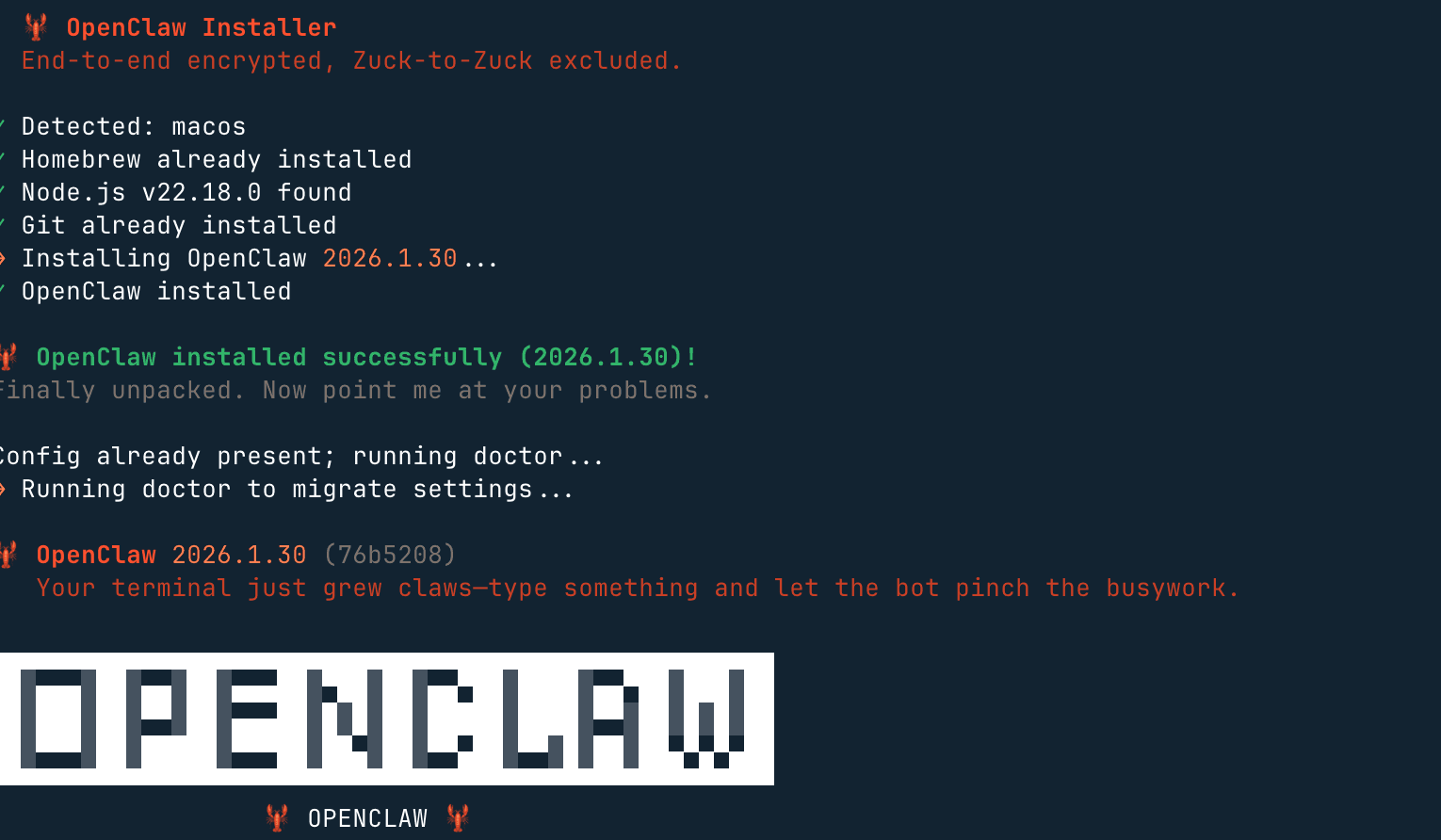
If the installation is successful, you will see the following prompt, indicating successful installation:
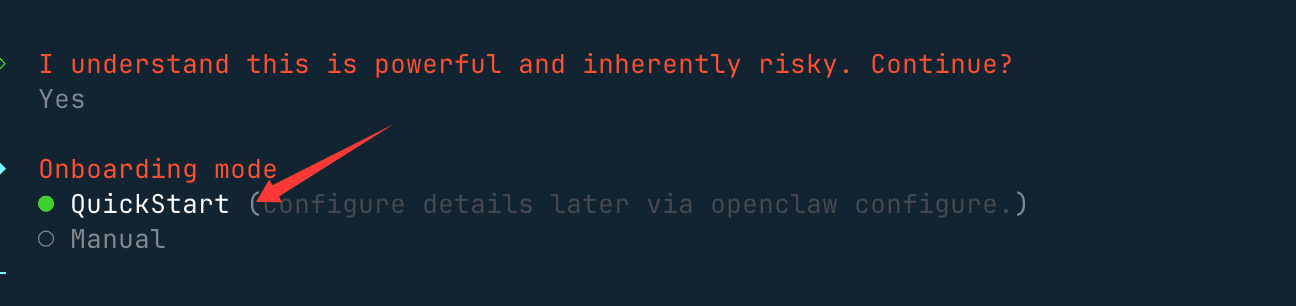
Select [yes] and continue with the installation:

Select the QuickStart option:
Step3: Set up Kimi K2.5
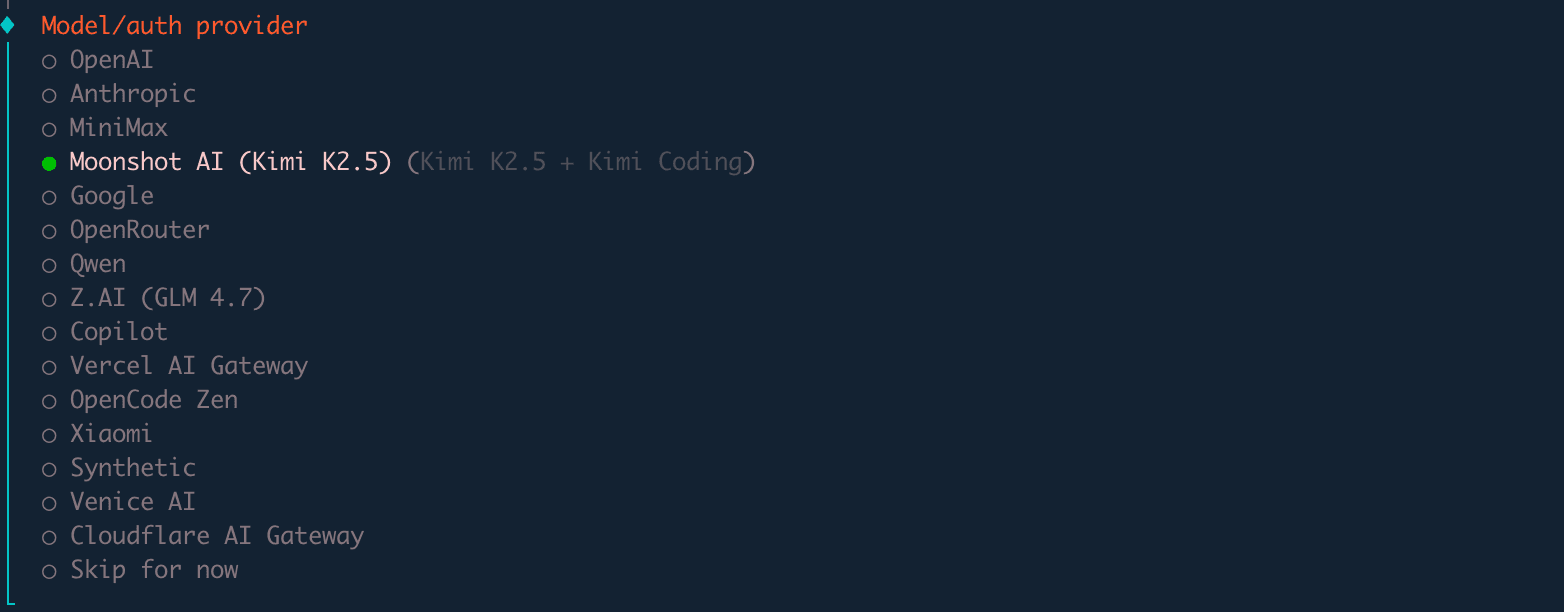
- Step 1: Model.auth provider > Choose Moonshot AI (Kimi K2.5)
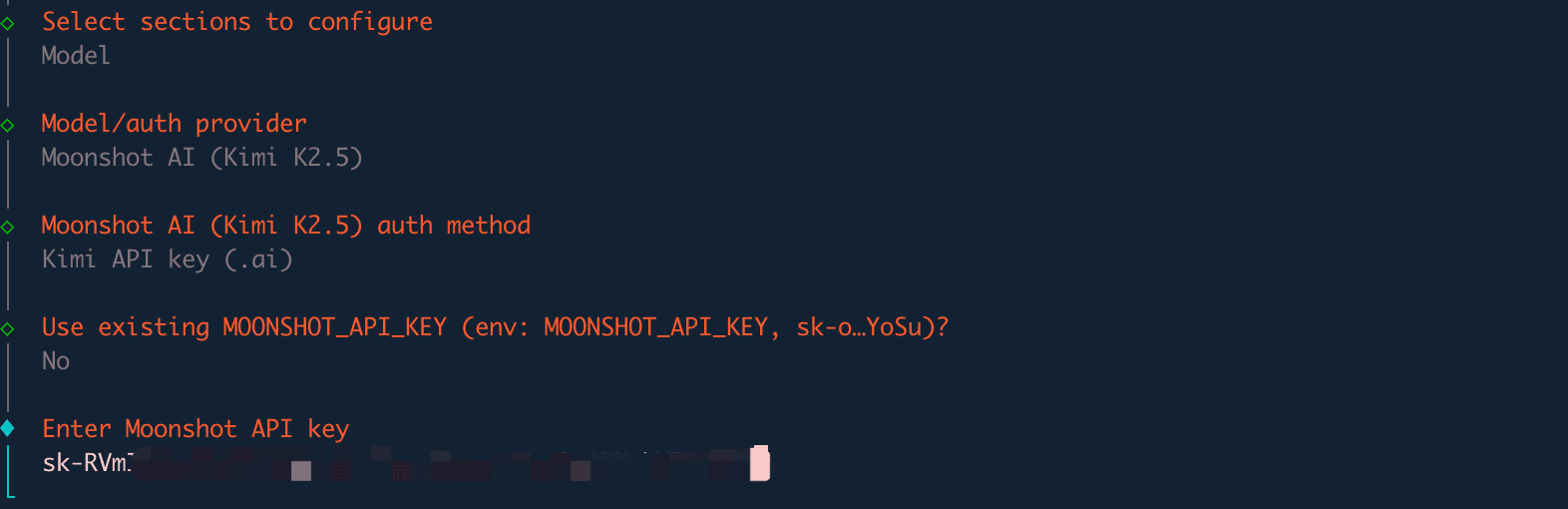
- Step 2: Model AI auth method(Kimi K2.5) > Choose Kimi API key (.ai)
- Step 3: Enter Moonshot API Key(.ai) > Enter your API Key
- Step 4: Default model > Keep current(moonshot/kimi-k2.5)


Then you will see the option to select the chat tool. You can select [Skip for now] first:
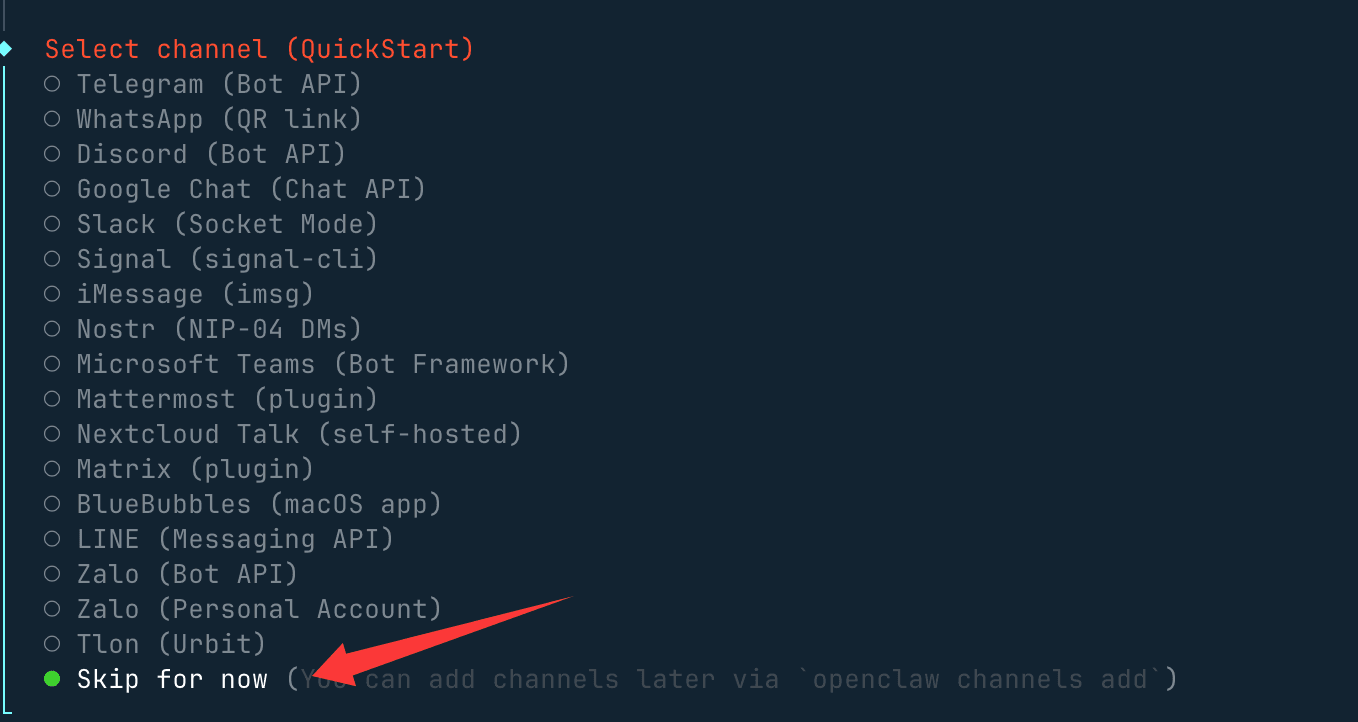
Other configurations, such as the Gateway Port setting, can be left at the default 18789. For Skills and the package manager, select npm or other options, and you can select Yes for all the remaining options.
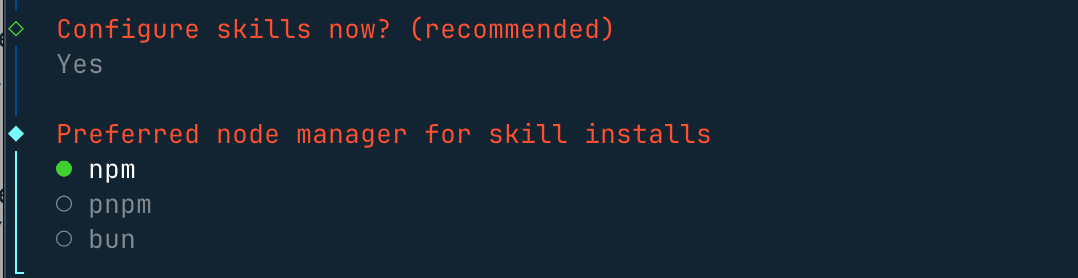
For skills, you can skip this step or use the space key to select the ones you need.

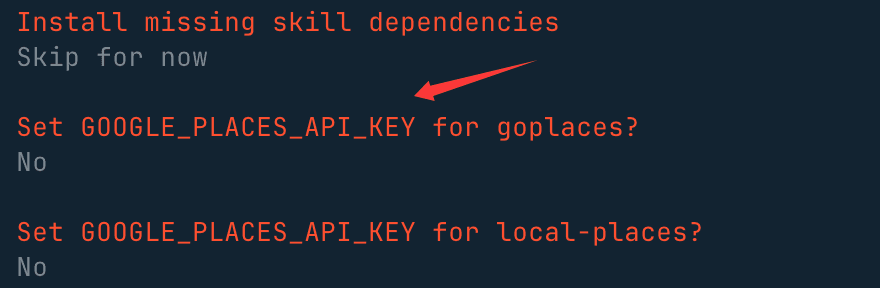
For the remaining API keys, select no if you don't have them:
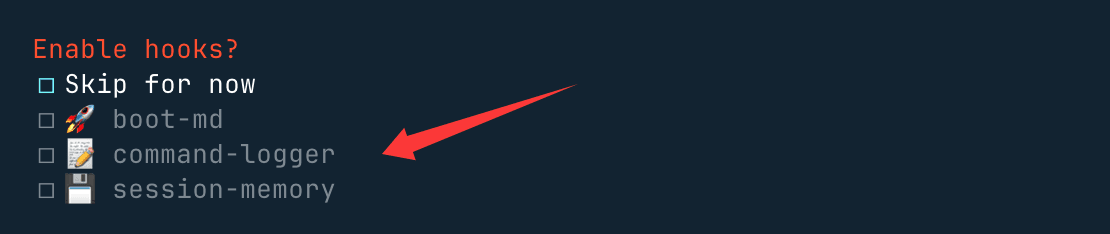
The last three hooks can be enabled to perform content guidance logs and session records:
After installation, you can automatically access http://127.0.0.1:18789 (opens in a new tab) to open the chat interface and start working.